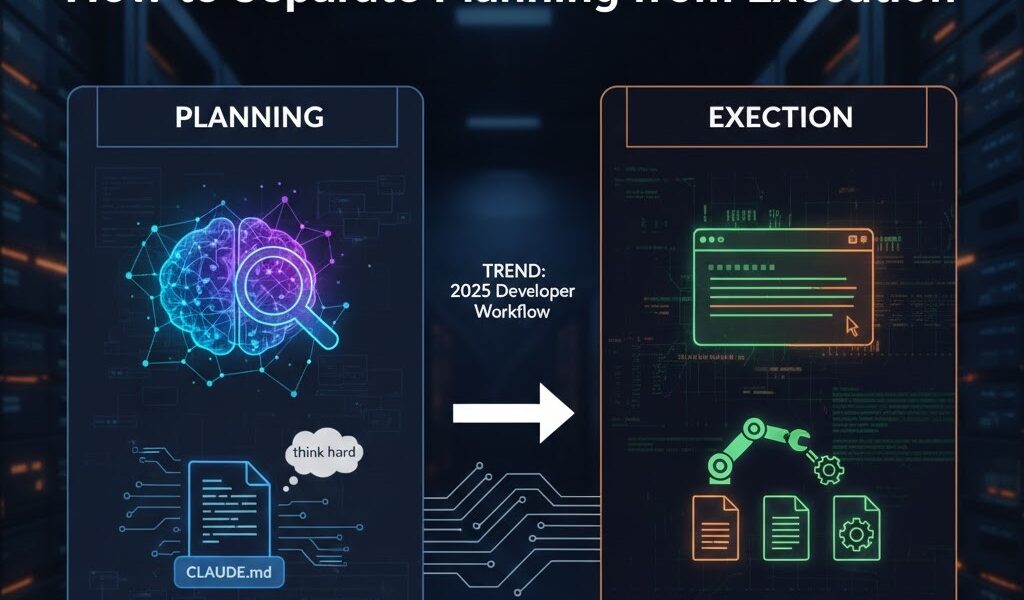
I’ll be honest — when I first heard the phrase “Claude Code workflow,” I expected another vague productivity framework. What I found instead was one of the most practically useful shifts I’ve made in how I actually write software day-to-day.
Claude Code, Anthropic’s agentic CLI tool, doesn’t just autocomplete your code. It reads your files, runs commands, edits across multiple files simultaneously, handles git workflows, and integrates with your existing toolchain — all from your terminal. The catch? You get dramatically better results when you’re intentional about when you ask it to think versus when you ask it to act. That distinction — planning vs. execution — is what this guide is about.
By the end, you’ll have a concrete, repeatable Claude Code workflow you can use starting today.
What Is Claude Code? Anthropic’s Agentic CLI Tool Explained
Before diving into workflow strategies, it’s worth being precise about what Claude Code actually is — because it’s frequently misunderstood.
Claude Code is a command-line interface (CLI) tool built by Anthropic for agentic coding. It lives in your terminal, understands your entire codebase, and can autonomously perform tasks like editing files, running shell commands, managing git operations, and creating pull requests — all through natural language instructions. It’s open-source on GitHub and works across macOS, Linux, and Windows.
What makes it “agentic” is the feedback loop it runs autonomously: gather context → take action → verify results → repeat. You give it a goal; it figures out the steps. This is fundamentally different from a chat-based assistant where you paste code snippets back and forth.
To install Claude Code, run:
# Requires Node.js 18+
npm install -g @anthropic-ai/claude-code
# Navigate to your project and start
cd your-project claude
Claude Code works with Opus 4.6, Sonnet 4.6, and Haiku 4.5 models, and requires either a Claude Pro/Max subscription or Anthropic API access. Once installed, you can run it directly in your terminal, inside VS Code (with the official extension), or in the standalone desktop app.
Why Separating Planning from Execution Matters in Agentic Coding
The Cognitive Cost of Mixed-Mode Development
Here’s a scenario most developers will recognize: you ask an AI to “add user authentication.” Within seconds it’s writing code — but it’s made a stack choice you don’t agree with, missed a security requirement, and structured the feature in a way that’ll require a painful refactor in three weeks. You didn’t get a chance to course-correct before it was already halfway done.
This happens because code generation and architectural thinking are cognitively different activities. When you collapse them into one step, you lose the ability to evaluate the plan independently of the implementation.
Claude Code’s documentation — particularly Anthropic’s official best practices guide — makes this point explicitly: without a dedicated exploration and planning step, Claude tends to jump straight to coding a solution. The output is faster, but the quality drops.
How Claude Code’s Architecture Enables This Separation
Claude Code provides specific mechanisms that make planning-before-execution a natural part of the workflow:
Extended thinking modes let you ask Claude to reason more deeply before taking action. The trigger phrases map directly to increasing amounts of thinking budget: “think” → “think hard” → “think harder” → “ultrathink.” Using these during the planning phase — before any files are touched — tends to produce substantially better architectural decisions.
Explicit instruction to not write code yet is surprisingly powerful. Telling Claude “read these files but don’t write any code” during the exploration phase focuses it on understanding and analysis rather than jumping to implementation.
CLAUDE.md files act as a persistent project context layer that persists across sessions — essentially, the codification of your planning decisions. More on these in the next section.
Phase 1 — Planning With Claude Code: CLAUDE.md and Interactive Mode
Setting Up Your CLAUDE.md Project Context File
CLAUDE.md is one of Claude Code’s most underutilized features. It’s a Markdown file you place in your project root that Claude automatically pulls into its context at the start of every session. Think of it as the permanent briefing document your AI agent reads before touching anything.
A well-crafted CLAUDE.md answers these questions before Claude even asks:
- What commands does this project use for building, testing, and running?
- What coding standards and conventions are expected?
- What libraries or patterns are preferred (or explicitly prohibited)?
- Are there any quirks or gotchas in this codebase worth knowing?
- What does the branching strategy look like?
Here’s a practical example for a Node.js project:
# Project: E-Commerce API

## Bash Commands
- npm run build        → Compile TypeScript
- npm run test         → Run Jest test suite
- npm run lint         → ESLint + Prettier check
- npm run typecheck    → TypeScript type check (run before committing)

## Code Style
- Use ES modules (import/export), never CommonJS require()
- All async functions must use async/await, not .then() chains
- Error handling: always throw typed errors from /src/errors/
- No raw SQL — use the Prisma ORM exclusively

## Architecture Notes
- Auth logic lives in /src/middleware/auth.ts — do NOT duplicate
- Payment flows go through /src/services/stripe.ts only
- Never commit secrets; use process.env and reference .env.example

## Branch Strategy
- Feature branches: feature/short-description
- Always rebase, never merge directly to main
- Open PRs with `gh pr create --fill`
You can create your CLAUDE.md manually, or let Claude generate a starting version with the /init command when you first open a project. From there, refine it over time — press # during any session to give Claude an instruction it’ll automatically write into the relevant CLAUDE.md.
Placing CLAUDE.md Files Strategically
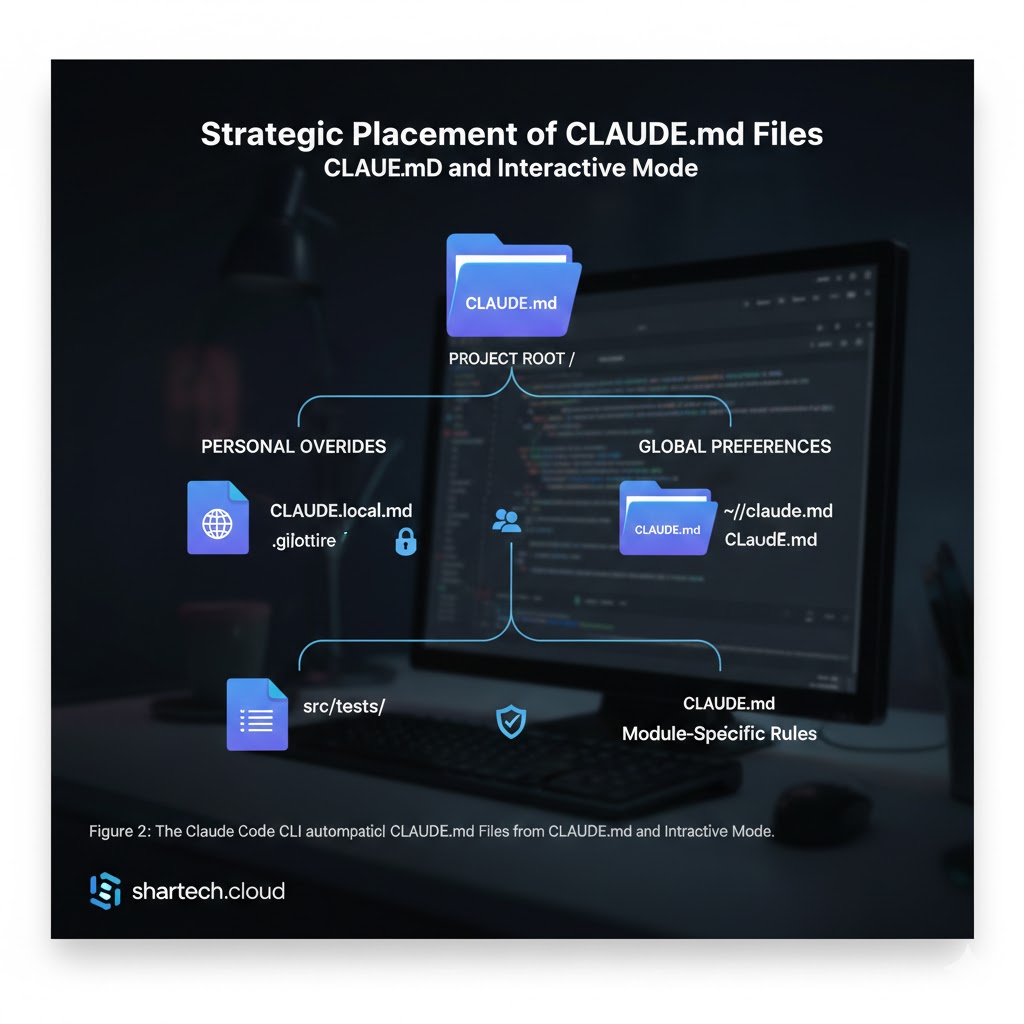
Claude Code supports CLAUDE.md files in multiple locations and loads them all automatically:
| Location | Best For |
|---|---|
./CLAUDE.md (project root) | Project-specific conventions — commit this to git to share with your team |
./CLAUDE.local.md | Your personal overrides for the project — add to .gitignore |
~/.claude/CLAUDE.md | Global preferences that apply to all your projects |
| Subdirectory CLAUDE.md | Module-specific rules (e.g., a different standard for /tests/) |
Running Claude Code in Plan-First Mode
When starting a new feature or tackling a significant bug, resist the urge to immediately describe what you want built. Instead, structure your planning session in two parts.
Step 1: Exploration (read-only)
claude "Read src/auth/middleware.ts, src/routes/user.ts, and the tests in
tests/auth/. Understand the current authentication flow.
Do NOT write any code yet."
Step 2: Planning (think hard before proposing)
claude "Now think hard about how to add refresh token support
to the existing auth system. Consider edge cases, security implications,
and how it fits the current architecture. Give me a written plan
before writing any code."
The phrase “think hard” triggers Claude’s extended thinking mode, giving it more computation time to reason through tradeoffs. At this stage, you can review the plan, push back, ask for alternatives, and confirm direction — before a single line of production code is written.
docs/refresh-token-plan.md before we start implementing.”Phase 2 — Execution With Claude Code: Agentic Task Runs
Switching From Planning to Execution Mode
Once you’ve reviewed and approved the plan, execution becomes more directed. Claude already has the architectural context from the planning phase, so your implementation prompts can be much more concise.
claude "Implement the refresh token plan we just discussed.
Start with the database schema changes, then middleware,
then the route handlers. Run the test suite after each section
and fix any failures before moving on."
During execution, Claude Code runs autonomously through your actual file system — reading, editing, and creating files, running shell commands, checking lint output, and verifying test results. It works iteratively through the task loop without you needing to copy-paste code between windows.
Managing File Permissions and Tool Access
By default, Claude Code asks permission before making changes. Once you’re comfortable with a workflow, you can streamline this using the /permissions command to set standing permissions for specific tools:
# Allow file edits without confirmation (easy to undo via git)
/permissions add Edit

# Allow git commits
/permissions add Bash(git commit:*)

# Allow running tests
/permissions add Bash(npm test:*)
These settings get saved to .claude/settings.json, which you can commit to share consistent permissions with your team.
Verifying Execution Quality
A good execution phase doesn’t just write code — it verifies. Ask Claude to confirm its work at logical checkpoints:
claude "After implementing the middleware, run the auth test suite,
fix any failures, then run TypeScript typecheck. Only proceed
to the route handlers once both pass cleanly."
This turns Claude Code into something closer to a junior developer who runs their own tests before handing code back to you — rather than an autocomplete engine that generates plausible-looking code without verification.
The Explore → Plan → Code → Commit Workflow (Step by Step)
Anthropic’s own engineering team uses a specific four-phase pattern they call “Explore, Plan, Code, Commit.” It’s the closest thing to an official Claude Code workflow, and it maps directly onto the planning-vs-execution principle we’ve been discussing.
Here’s what it looks like in practice:
Phase 1 — Explore: Ask Claude to read the relevant files and understand the problem space. Explicitly tell it not to write any code. If the problem is complex, ask it to spawn subagents to investigate specific questions in parallel — this preserves your main context window for higher-level reasoning.
Phase 2 — Plan: Ask Claude to make a plan, using “think” or “think hard” to activate extended reasoning. Save the plan to a file or a GitHub issue. This gives you a clear rollback point if implementation goes off track.
Phase 3 — Code: Implement the plan. Ask Claude to verify its work incrementally as it implements each piece of the solution.
Phase 4 — Commit: Ask Claude to commit the result and open a PR. This is also a good moment to have it update changelogs or documentation to reflect what changed.
“Steps #1 and #2 are crucial — without them, Claude tends to jump straight to coding a solution. Asking Claude to research and plan first significantly improves performance for problems requiring deeper thinking upfront.” — Anthropic Engineering Blog
Using Custom Slash Commands to Encode Your Workflow
Once you’ve found a workflow pattern that works for your team, you can codify it using custom slash commands. These are Markdown files stored in .claude/commands/ that become available as /project:command-name in any Claude Code session.
Here’s an example that encodes the full planning-to-execution cycle for a feature request:
# .claude/commands/build-feature.md

Implement the following feature: $ARGUMENTS

Follow these steps without skipping any:

1. Explore: Read all relevant source files. Do NOT write code yet.
2. Plan: Think hard about the implementation approach. Document
   tradeoffs and your chosen approach in a brief plan.
3. Confirm: Output the plan and wait for me to approve before proceeding.
4. Implement: Write the code per the approved plan. Run tests after
   each logical section.
5. Verify: Ensure all tests pass and the TypeScript typechecker is clean.
6. Commit: Stage changes, write a descriptive commit message,
   and create a PR with `gh pr create --fill`.
Once this file is saved, anyone on your team can type /project:build-feature add OAuth login support and get a consistent, high-quality workflow with zero additional prompting. The $ARGUMENTS keyword passes whatever you type after the command name into the template.
Common Mistakes When Using Claude Code’s Planning-Execution Workflow
Even experienced developers run into these. Here are the most common pitfalls and how to avoid them.
Skipping the planning phase entirely. It’s tempting to just describe what you want and let Claude run. For small tasks this is fine. For anything spanning multiple files or requiring architectural judgment, skipping planning leads to code you’ll want to rewrite sooner than you think.
Using a thin CLAUDE.md. A CLAUDE.md that just says “write clean code” isn’t doing much work. The richer your project context file — build commands, conventions, forbidden patterns, team preferences — the more consistently Claude Code produces output that fits your codebase without extensive correction.
Never iterating on CLAUDE.md. Your first CLAUDE.md draft is a starting point, not a finished product. Treat it like a prompt you actively refine. Anthropic’s team periodically runs their CLAUDE.md files through the prompt improver tool and tunes instructions (adding “IMPORTANT” or “YOU MUST” where adherence was slipping).
Approving plans without reading them. The whole value of separating planning from execution is that you get to review the plan. If you’re rubber-stamping Claude’s plan without engaging with it, you’ve lost the main benefit of the separation.
Overloading a single session with unrelated tasks. Context is finite. Starting a new session for each distinct task (rather than piling feature A, bug fix B, and refactor C into one session) keeps Claude’s reasoning sharper and avoids context bleed between unrelated changes.
Pro Tips for Getting the Most Out of Claude Code
Use MCP to Extend Claude Code’s Reach
Claude Code supports the Model Context Protocol (MCP), which lets it connect to external tools and services. By adding an MCP server to your .mcp.json, you can give Claude Code the ability to read GitHub issues, update Jira tickets, pull Slack threads, interact with databases, and more — all within a single session.
# .mcp.json — shared with your whole team via git
{
  "mcpServers": {
    "github": {
      "command": "npx",
      "args": ["-y", "@modelcontextprotocol/server-github"]
    },
    "puppeteer": {
      "command": "npx",
      "args": ["-y", "@modelcontextprotocol/server-puppeteer"]
    }
  }
}
Pipe Claude Code Into CI/CD Workflows
Claude Code’s -p flag makes it scriptable and composable with other Unix tools. This opens up some genuinely powerful automation patterns:
# Automatically review log output for anomalies
tail -f app.log | claude -p "Alert me if you see any critical errors or anomalies"

# Run automated code review on a PR in CI
claude -p "Review the changes in this PR for security issues and code quality.
Output findings as a JSON array."
Spawn Subagents for Complex Tasks
For tasks with multiple independent workstreams, Claude Code supports spawning subagents — separate Claude instances with their own context windows — that can work in parallel. A lead agent coordinates the subtasks and merges results. This is particularly useful during the exploration phase of a complex feature, where you want Claude to investigate three different modules simultaneously without one investigation contaminating the context for another.
FAQ: Claude Code Planning and Execution
What is Claude Code?
Claude Code is Anthropic’s agentic CLI tool for software development. It runs in your terminal (or IDE via extension), understands your codebase, edits files, runs commands, and handles git workflows through natural language instructions. It’s available with a Claude Pro or Max subscription, or via Anthropic API access.
How does Claude Code differ from GitHub Copilot?
Copilot is primarily a code completion tool that suggests the next lines of code as you type. Claude Code is an agentic tool that can plan, implement, verify, and commit entire features autonomously — spanning multiple files and using your shell environment. The scope and autonomy are fundamentally different.
What is CLAUDE.md and why does it matter?
CLAUDE.md is a Markdown file in your project root that Claude Code reads at the start of every session. It acts as persistent project context — documenting your build commands, coding conventions, architecture notes, and team preferences. A well-maintained CLAUDE.md is one of the biggest factors in getting consistently high-quality output from Claude Code.
Is Claude Code free to use?
Claude Code requires either a Claude Pro subscription ($20/month), Claude Max subscription ($100 or $200/month), or Anthropic API access (pay per token). There is no fully free tier for Claude Code usage, though token consumption varies significantly based on task complexity.
Can Claude Code access my private code?
Claude Code runs locally in your terminal and communicates directly with Anthropic’s model APIs. It does not require a backend server or remote code index. Your code is sent to the model API for processing, subject to Anthropic’s standard data handling policies — the same as using Claude.ai directly.
How do I stop Claude Code from making changes without asking?
By default, Claude Code requests permission before actions that modify your system. You can control this granularly using the /permissions command to set standing approvals for specific tools (e.g., always allow file edits, always allow test runs). For maximum control, avoid setting broad permissions and review each action manually.
Wrapping Up
The planning-vs-execution distinction in Claude Code isn’t a fancy technique — it’s a recognition that these two cognitive modes genuinely benefit from separation. When you give Claude Code time to explore and reason before it acts, you get architectural decisions that actually fit your codebase, fewer surprises mid-implementation, and code that’s easier to review because you understood the plan before the first line was written.
Start with the basics: create a CLAUDE.md for your next project, try the explore-don’t-code-yet prompt pattern on your next feature, and notice how much calmer the implementation phase feels when you’ve already resolved the hard questions upfront.
If you want to go deeper, the official Anthropic best practices guide is worth a full read. The Claude Code GitHub repository also has community-contributed plugins and slash commands that can accelerate your setup significantly.
Have a workflow pattern that’s worked particularly well for your team? Share it in the comments below.