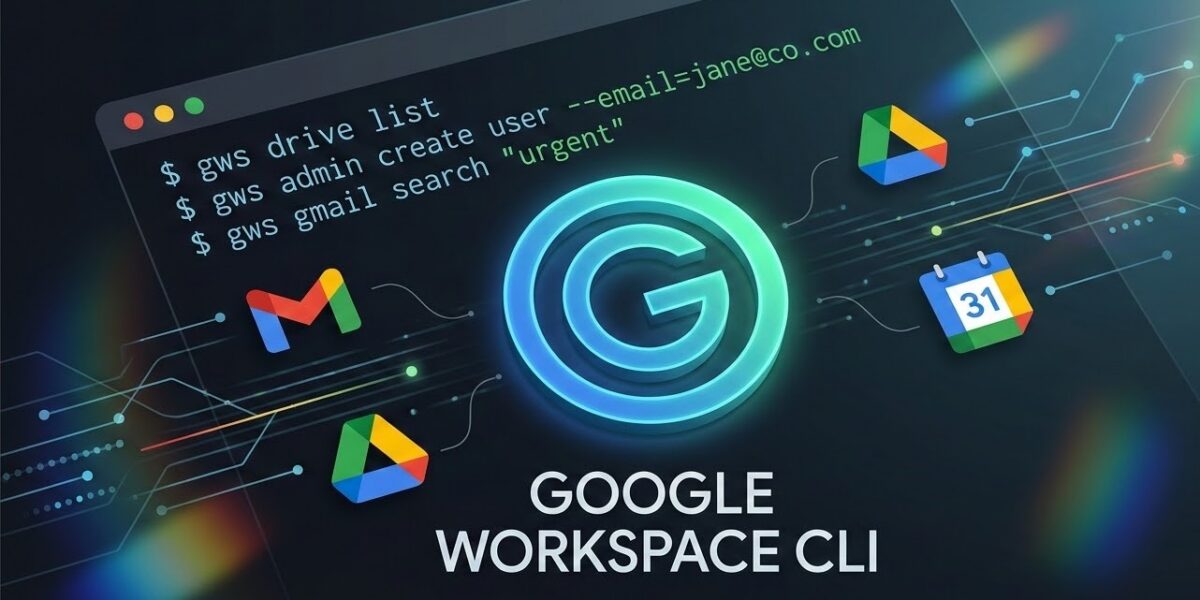
In March 2026, Google launched the official Google Workspace CLI (gws). This tool changes how teams manage their digital office. Instead of clicking through many menus, you can now control Google Drive, Gmail, and Admin settings directly from your terminal.
The Google Workspace CLI is built for speed. It helps IT admins and developers save hours by automating tasks that usually require manual work. In this guide, we will show you how to set up the tool and use it to boost your daily productivity.
What is the Google Workspace CLI?
The Google Workspace CLI (known as gws) is a bridge between your computer and Google’s powerful APIs. It allows you to talk to Google services using simple text commands. Because it uses a modern “discovery service,” it always has the latest features from Google without needing a manual update.
Why use a CLI instead of the Browser?
While the Google Admin Console is great for one-time changes, it is slow for bulk work. The CLI is better because:
- It is faster: You don’t have to wait for pages to load.
- It allows scripts: You can write a short script to handle 100 users at once.
- It offers clear data: You can export results as clean JSON or CSV files.
How to Install and Set Up gws
Setting up the Google Workspace CLI is easy and only takes a few minutes. Follow these three steps to get started.
Step 1: Check your Requirements
First, make sure you have Python 3.10 or a newer version installed. You also need a Google Workspace account with the right permissions to access your data.
Step 2: Run the Install Command
Open your terminal or command prompt. Use Python’s package manager to install the tool with this command:
# Install the CLI tool pip install google-workspace-cliStep 3: Securely Link your Account
Next, you must link the tool to your Google account. Run the login command below. This will open a window in your web browser to confirm your identity safely.
gws auth login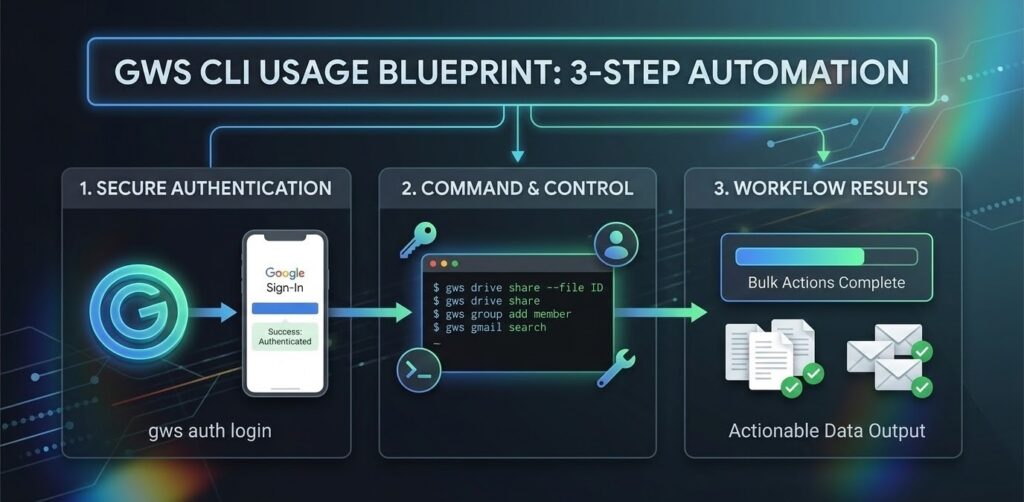
Best Commands for Daily Tasks
Once you are logged in, you can start using gws to manage your files and emails. Here are the most useful commands for beginners.
How to Manage Google Drive
Searching for files in the browser can be annoying. With the Google Workspace CLI, you can list specific files instantly. For example, to find all spreadsheets modified today, use:
gws drive files list --query "mimeType = 'application/vnd.google-apps.spreadsheet'"How to Audit Admin Users
If you are an IT Admin, you might need to check who is in a specific group. Instead of searching through the Admin Console, run this:
gws admin users list --query "orgUnitPath='/Marketing'"How to Search Gmail Faster
You can even find messages based on the sender or subject line without opening your inbox:
gws gmail messages list --query "from:support@google.com"Advanced Automation and AI Integration
The real power of gws comes from automation. Because the tool outputs data in simple formats, you can connect it to other apps or even AI agents.
Using AI with the CLI
The 2026 update includes support for the Model Context Protocol (MCP). This means you can let an AI assistant, like Gemini, use the CLI to help you. For instance, you could ask an AI to “Find all my unread emails from last week and summarize them,” and the AI would use the CLI to get that data for you.
Security Tips for Your Workspace
Security is the most important part of managing business data. When using the Google Workspace CLI, always follow these three simple rules:
- Use the “Least Privilege” Rule: Only give the CLI access to the files it truly needs.
- Check Audit Logs: Google keeps a record of every command you run. Check these logs regularly to ensure your account is safe.
- Keep it Private: Never share your login tokens or configuration files with anyone else.
Conclusion: Start Your Automation Journey
The Google Workspace CLI is a major step forward for anyone who wants to work smarter. It turns slow, manual clicks into fast, repeatable commands. Whether you are a solo developer or part of a large IT team, this tool will help you regain control of your digital workflow.
Ready to try it? Check out the Official GitHub Repository to start saving time today. Your terminal is ready—are you?